Getting Started with Linux CLI: Practical Examples

1. ls (File and Directory Listing)
- The
lscommand in Linux is used to list files and directories within the file system. It's one of the most commonly used commands for navigating and managing files. Here are some key aspects of thelscommand:
Basic Usage
ls         # List files and directories
ls -l      #  Displays detailed information about files and directories(permissions, owner, size, etc.)
ls -a      # Show hidden files (files starting with `.`)
ls -lh     # Human-readable format (sizes in KB, MB, etc.)
ls -r      # Reverse order listing
ls -t      # Sort by modification time
ls -i      # Show inode numbers (file metadata ID)
Common Options
ls→ Lists files and directories in the current directory.

How to Identify Files and Directories in Linux
- When you use the command
ls -lin Linux, the first character of each line tells you the type of the item.

If the first character is
d, the item is a directory.If the first character is
-, the item is a regular file.If the first character is
l, the item is a symbolic link.
Example :
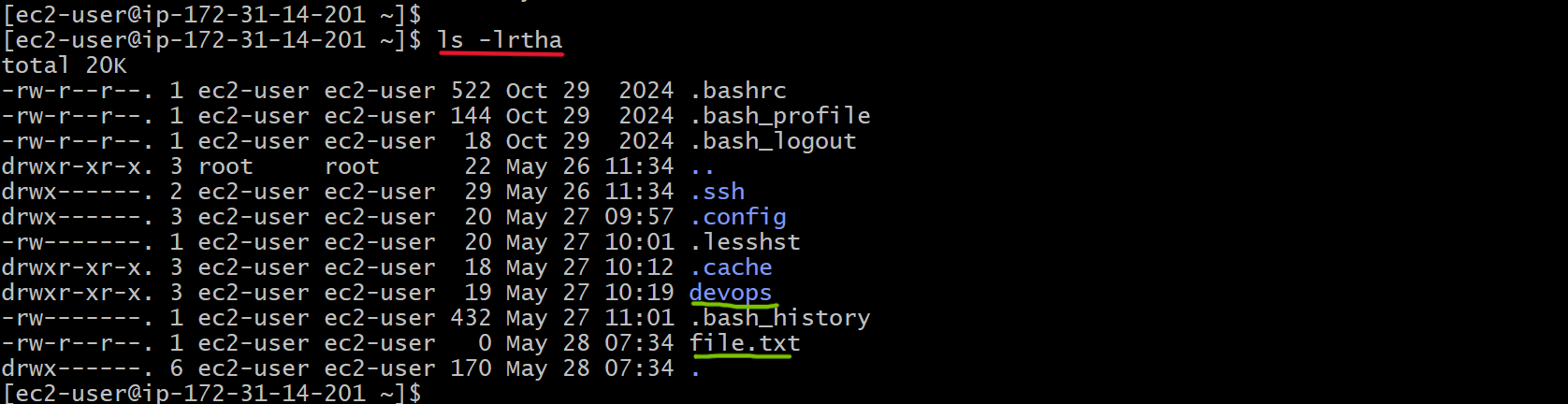
devopsis a directory because the line starts withd.file.txtis a regular file because the line starts with-.
what Are Hidden Files and Directories?
Hidden files and directories are not shown with a regular ls command.
A hidden file or directory starts with a dot ., like:.bashrc .config .ssh
They are often configuration files used by Linux or applications
ls -a→ Shows all files, including hidden ones.

Inode numbers
ls -i→ Show inode numbers (file metadata ID)The
ls -icommand in Linux displays the inode numbers of files and directories. An inode is a unique identifier for a file in the filesystem, storing metadata like permissions, ownership, and timestamps.

l -t → Sorts files by modification time.
- The
ls -tcommand in Linux sorts files by their modification time, with the most recently modified files appearing first. It helps track which files have been changed or updated recently.

ls -r → Lists files in reverse order.
- The
ls -rcommand in Linux lists files and directories in reverse order compared to the default sorting.
ls -lh → Human-readable format (sizes in KB, MB, etc.)
- The
ls -lhcommand in Linux lists files with detailed information (like permissions, owner, and modification date), but presents file sizes in a human-readable format (KB, MB, GB, etc.), instead of raw bytes.

The ls -R → command lists all files and directories recursively, showing their hierarchy.

Example :The current directory (.) contains:
devps(a directory)file.txt(a file)The
devops/directory contains:linux/subdirectory insidedevops/
Example Commands
ls -lrth→ Lists files in reverse order (-r), sorted by modification time (-t), and shows human-readable sizes (-h).

ls -lrtha→ Same as above but includes hidden files (-a).
2. vi (Text Editor)
The vi command in Linux is used to open and edit text files using the vi editor, which is a powerful and widely used text editor.
Opening a File
vi filename→ Opens the specified file (creates a new one if it doesn’t exist).vi -R filename→ Opens the file in read-only mode.
How to Create and Edit a File Using vi Editor in Linux
The vi editor is a powerful text editor in Linux. You can use it to create and edit files, including writing code, notes, or configurations.
Steps to Create a File (Example: file1.txt)
1. vi with a filename:

vi file1.txt
2. Enter Insert Mode:
Press
ito switch to Insert Mode.Now you can start typing anything (e.g., code, text, etc.).
Type your content freely. For example:

3. Exit Insert Mode:
Press the
Esckey on your keyboard.Save and Exit:
Type
:wqand pressEnter.w= write (save)q= quit (exit)
4.How to View the File You Created
To view the contents of your file again using vi: vi file1.txt

- You’ll see the file in normal mode.
To make changes again, press
ito enter Insert Mode.After editing, use
Escthen:wqto save and exit.
5. View File in Read-Only Mode
If you just want to view the file without editing it, use the -R option:

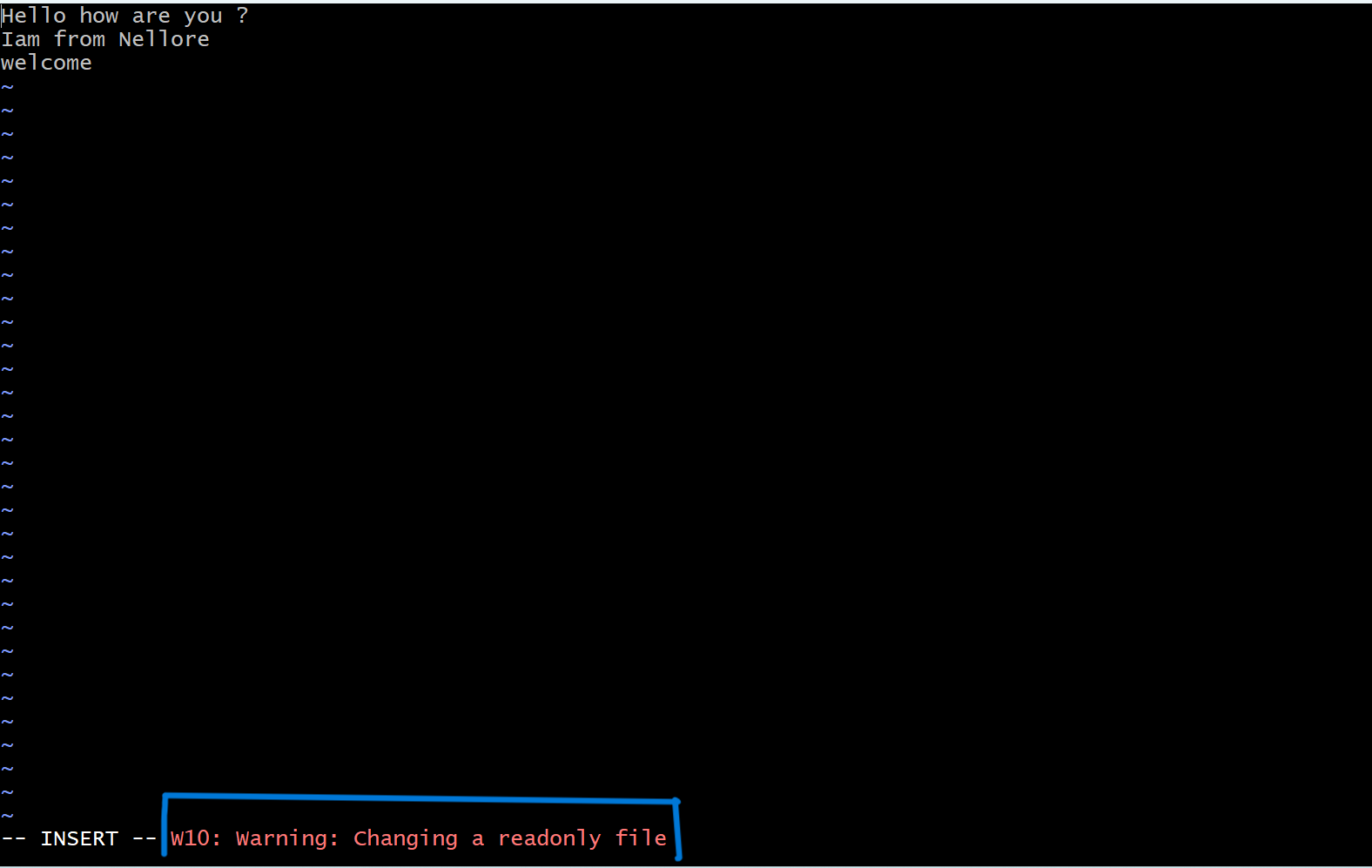
This opens the file in read-only mode, which is helpful when you don’t want to accidentally modify anything.
Exit Without Saving:
:q!
3. cat (Concatenate and Display Files)
The cat command in Linux is used to view, create, concatenate, and manipulate file contents. It's one of the most commonly used commands for handling text files.
Basic Usage
cat file.txt  # Display contents of a file
cat file1 file2  # Concatenate multiple files
cat *  # Display contents of all files in a directory
cat -n file_name  # Show line numbers
cat filename→ Displays the contents of a file.
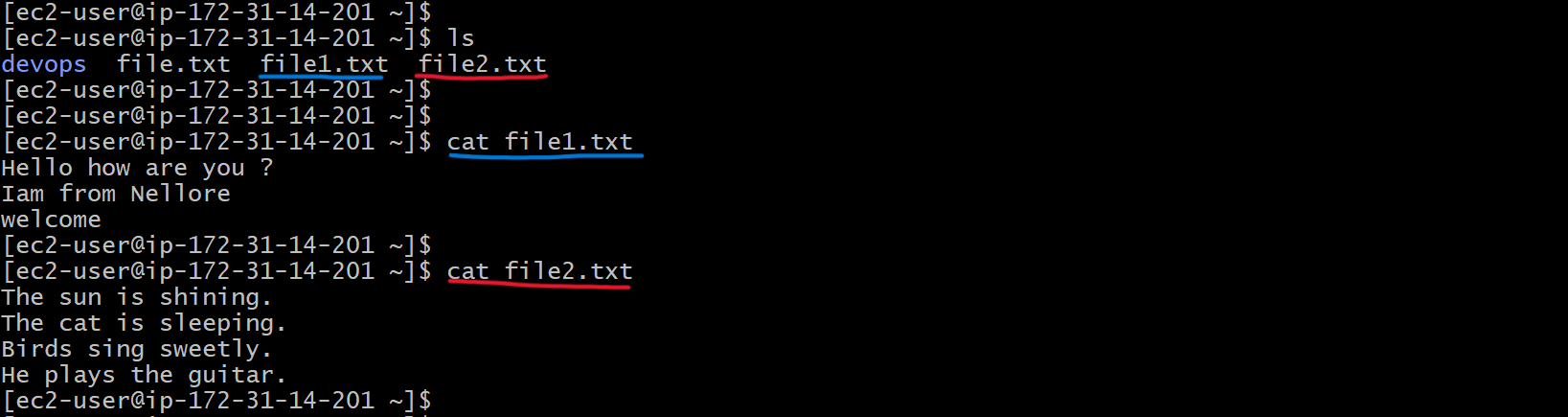
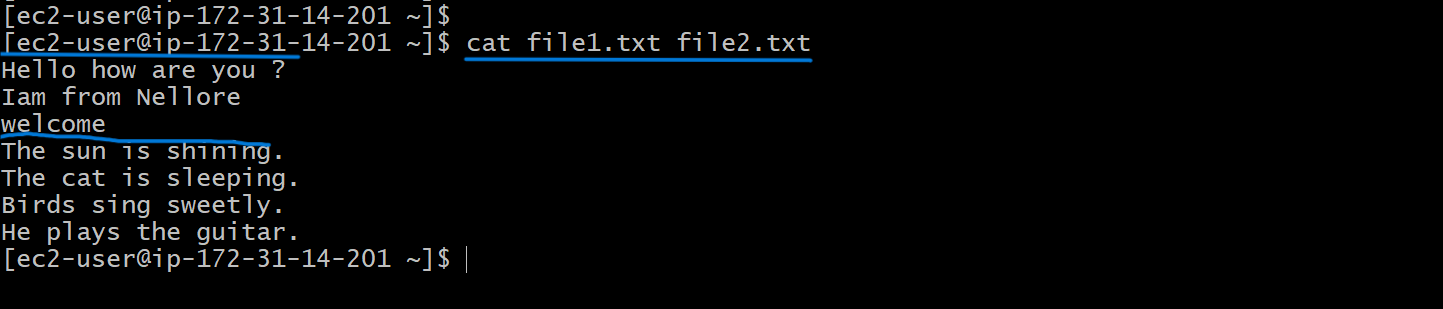
cat file1 file2→ Combines and displays the contents of multiple files.
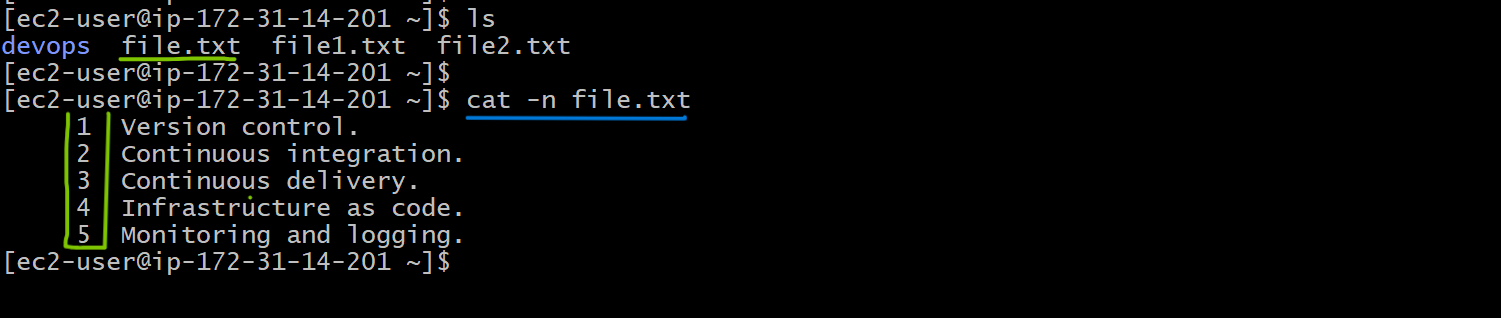
cat -n file_name→ Displays file contents with line numbers.
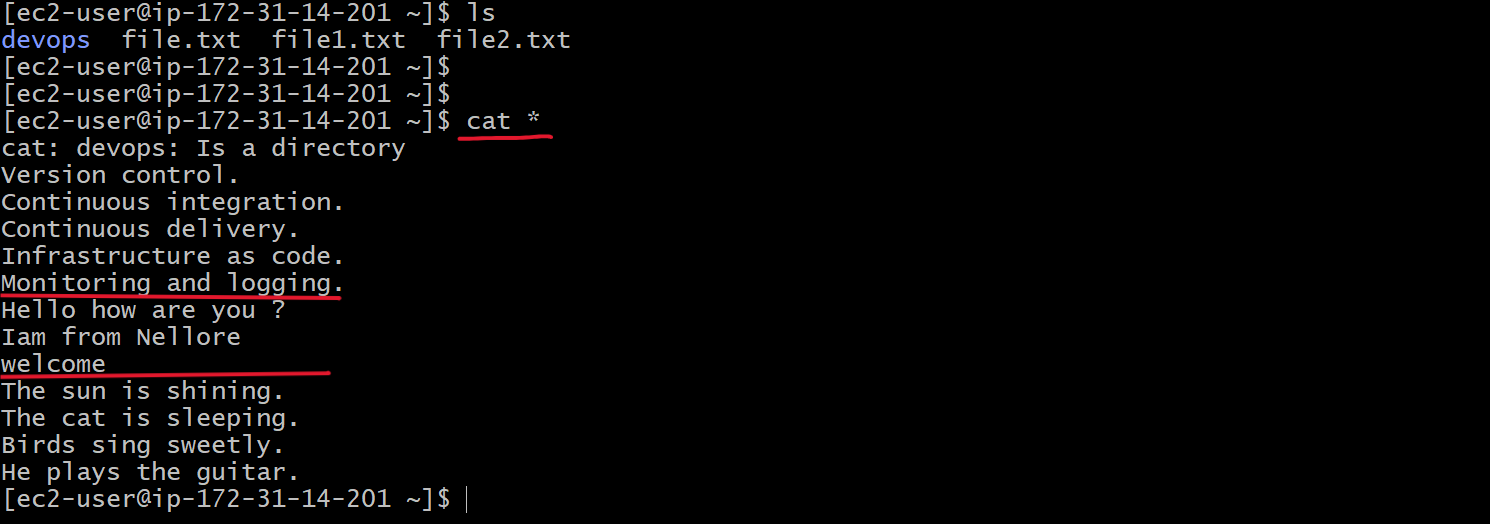
cat *→ Display contents of all files in a directory
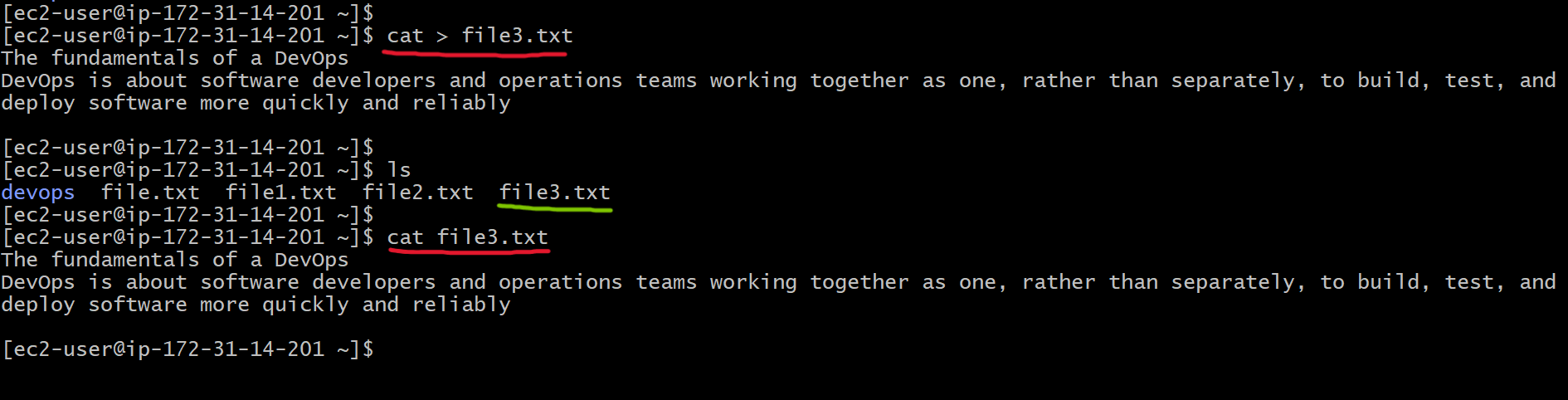
Create and Write to a File:
cat > filename  # Create and add content (Ctrl+D to save)
cat >> filename  # Append content to a file
cat > filename → Creates a new file and allows you to enter text (press Ctrl + D to save)
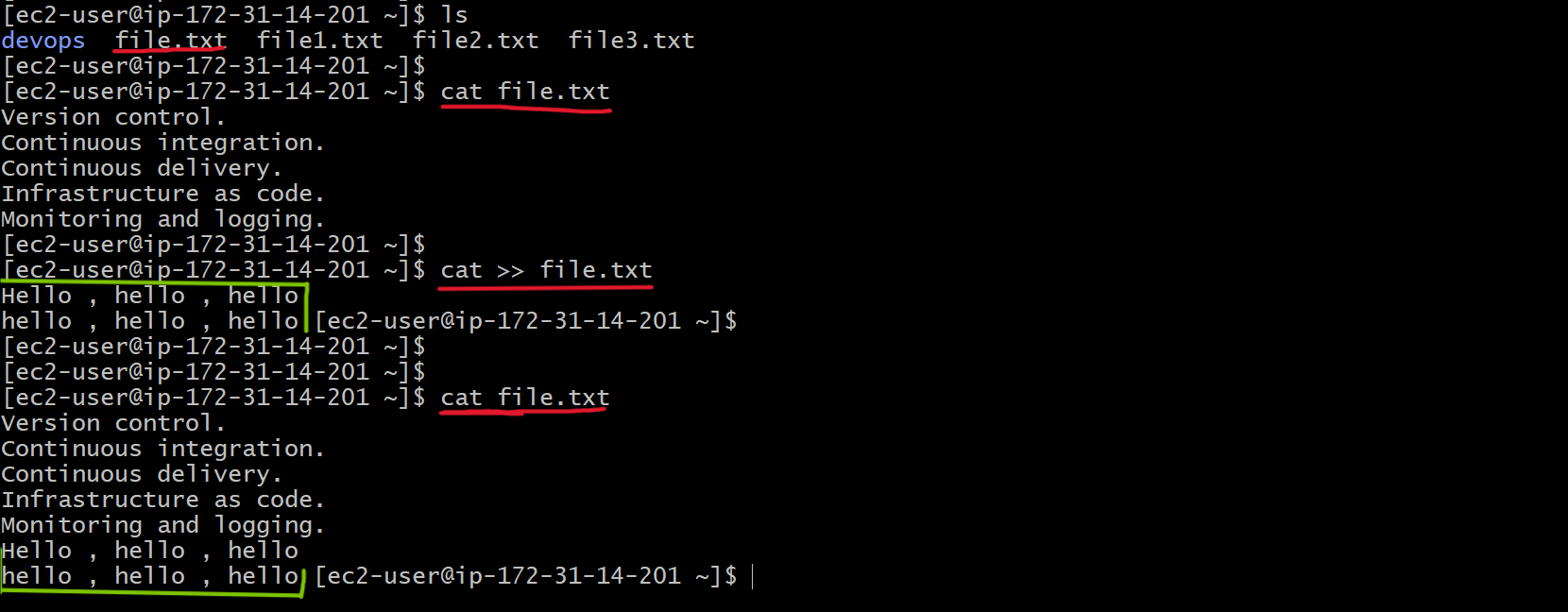
cat >> file.txt # Append content to a file
>>means append.This command puts you in input mode, where you can type new lines.
Whatever you type will be added to the end of the file.
Press Ctrl + D to stop appending.
To see the file’s updated content, use
cat filename.
File Manipulation:
>= Overwrite the whole file (dangerous if you want to keep old content)>>= Append new content to the end (safe if you want to keep existing lines)
cat file.txt file1.txt > merged.txt  # Merge files (overwrite)
cat file1 >> file2  # Append content of file1 to file2
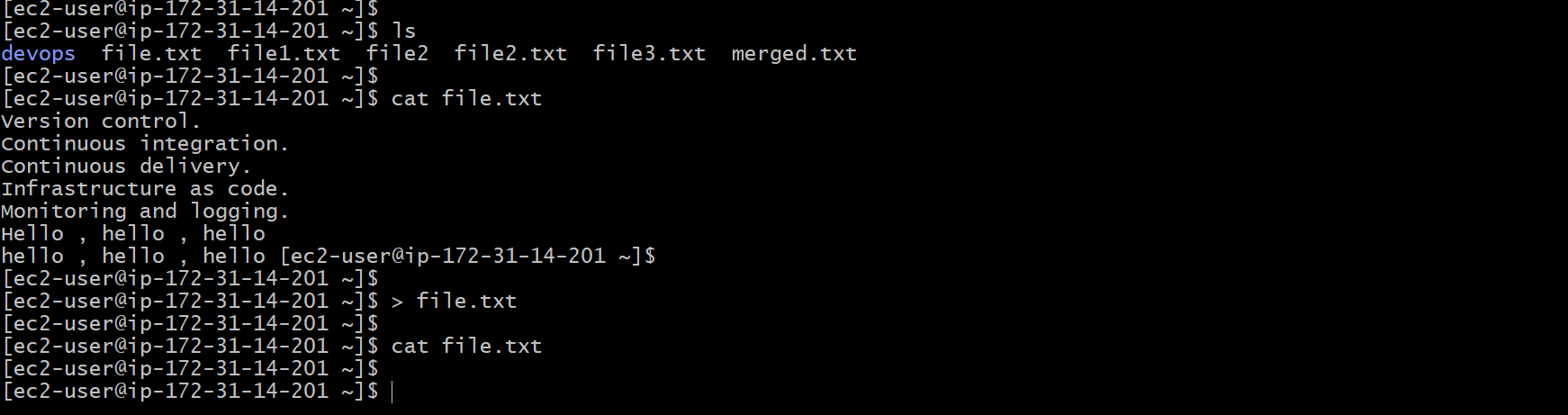
>file.txt  # Nullify (empty) the file
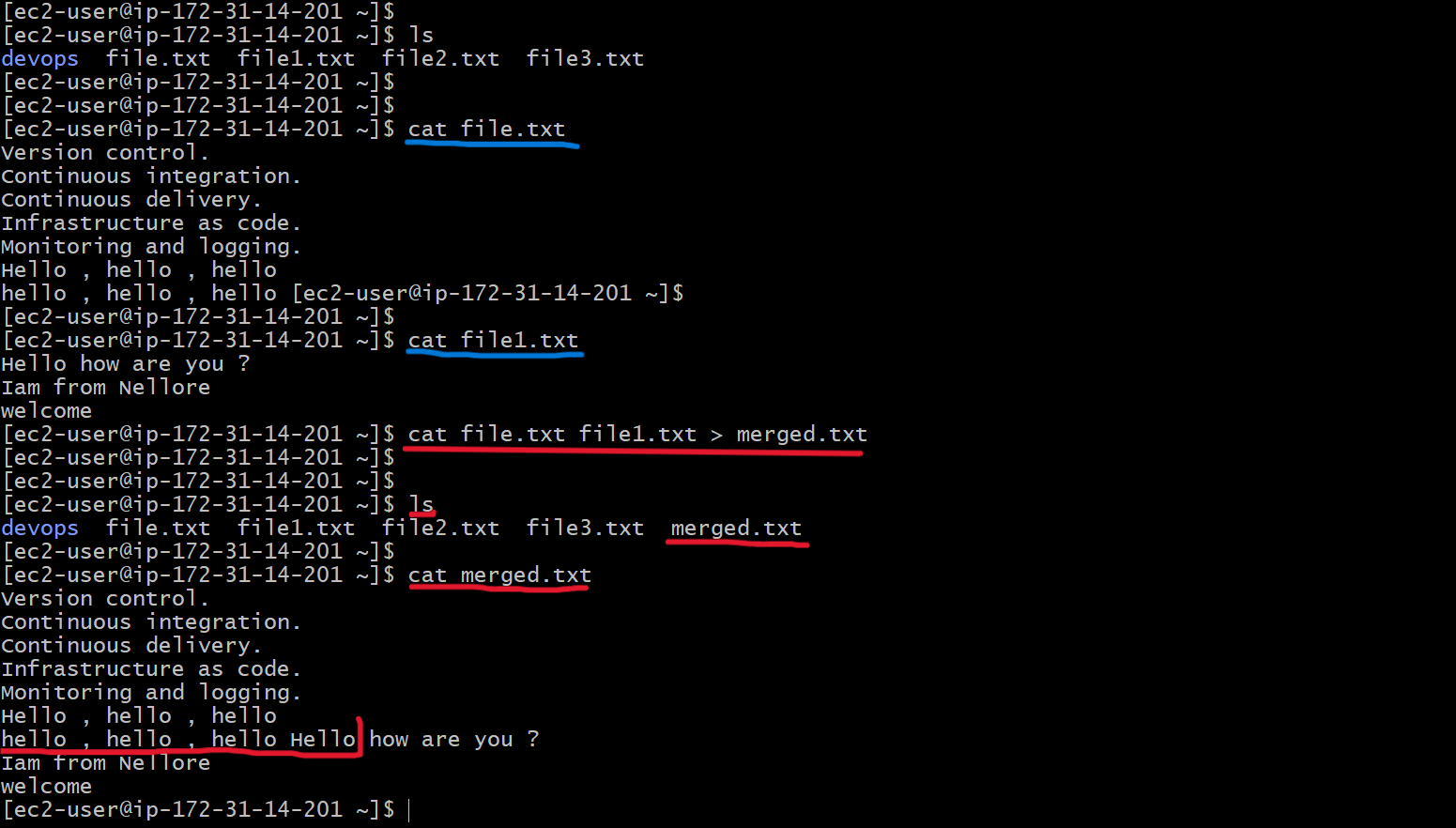
cat file.txt file1.txt > merged.txt → Merge files (overwrite)
Combine everything from both files into a new file.
It will contain all lines, including duplicates.
What It Does:
Reads the contents of both
file.txtandfile1.txt, in that order.Combines them (line by line) into one output.
The
>symbol means overwrite, so:If
merged.txtalready exists, it will be deleted and replaced.If it doesn't exist, it will be created.
The final result is written to
merged.txt.
cat file1.txt >> file.txt →Append content of file1 to file2
Add the entire content of
file1.txtto the end offile.txtEven if some lines are the same, it will still add them.
It does NOT check for duplicates.
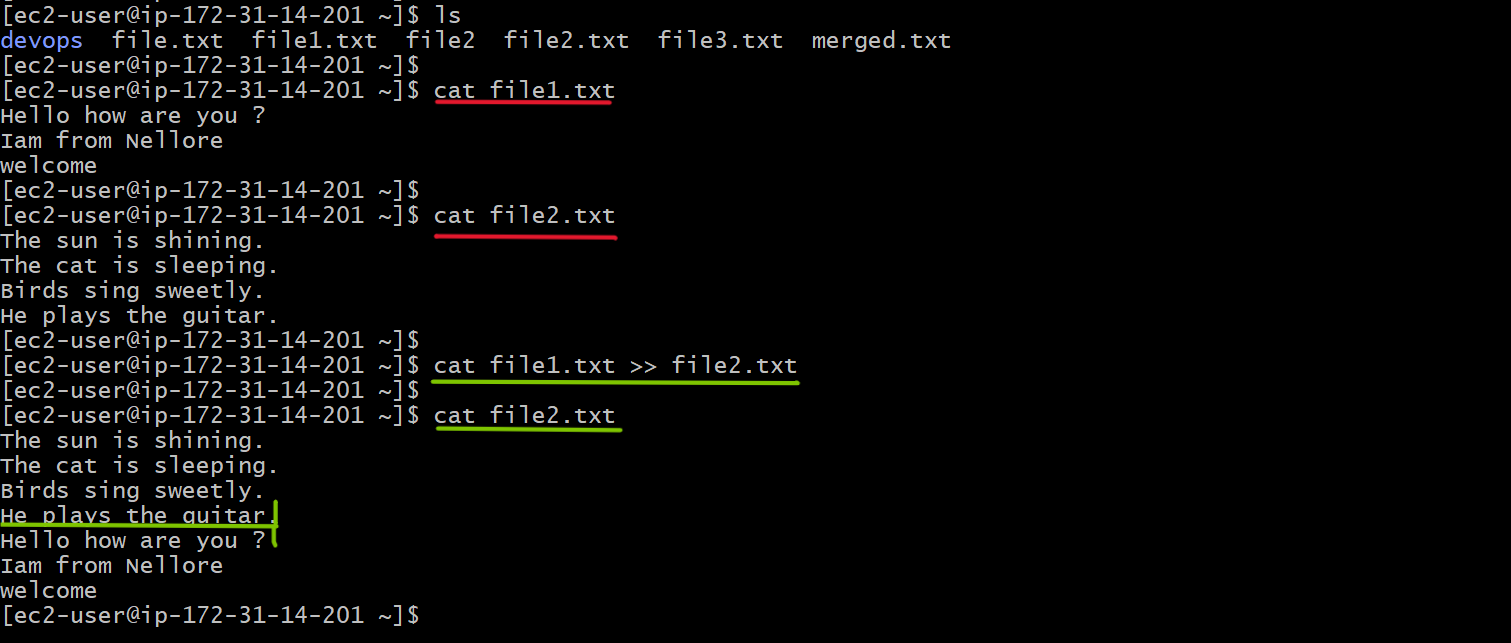
Even if some lines are the same, it will still add them.
It does NOT check for duplicates.
>file.txt # Nullify (empty) the file
4. tac (Reverse cat - Display File in Reverse)
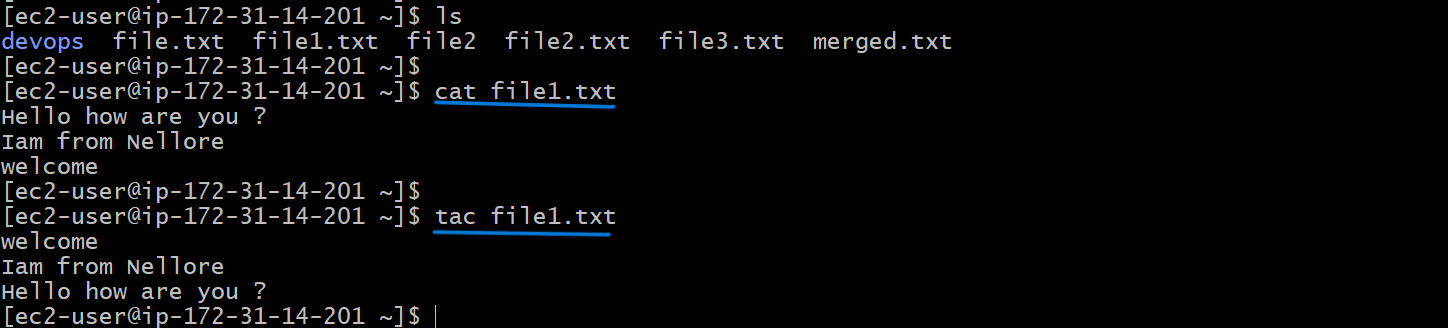
- The
taccommand is the reverse ofcat, displaying a file's contents from bottom to top.
tac filename # Show file content in reverse order
5. cp (Copy Files and Directories)
- The
cpcommand copies files or directories from one location to another.
cp devops.txt DevOps/  # Copy file to a directory
cp -R Python DevOps/  # Copy an entire directory recursively
Copying a File into a Directory
You have a file named
file1.txtin your home folder.You also have a folder (directory) called
devops.Let's go inside the
devopsfolder to see what's there: it contains a folder calledlinuxbut no files.Go back to your home directory: Now copy the file into the folder using the
cpcommand:
cp file1.txt devops/
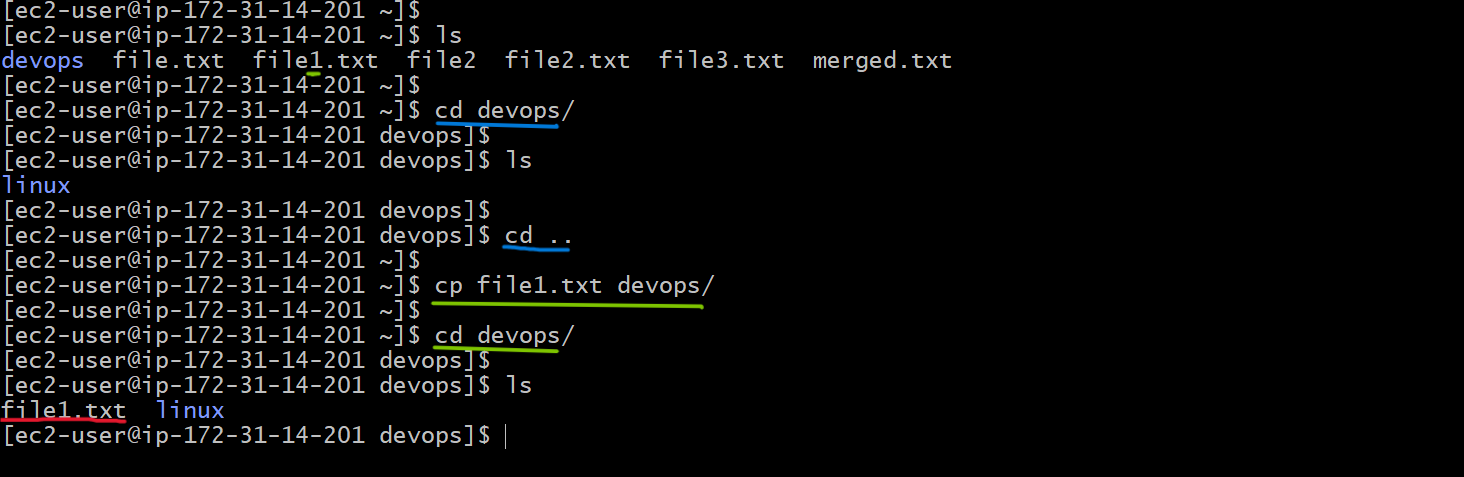
This means: "Take file1.txt and copy it into the devops folder."
- Check if the copy worked: You should now see:
file1.txt
Copy an entire directory recursively
cp -R devops devops123/
Created a new directory named
devops123usingmkdir. (it's empty by default)Used
cp -R devops devops123/to recursively copy the entiredevopsdirectory (including all files and subdirectories) intodevops123.
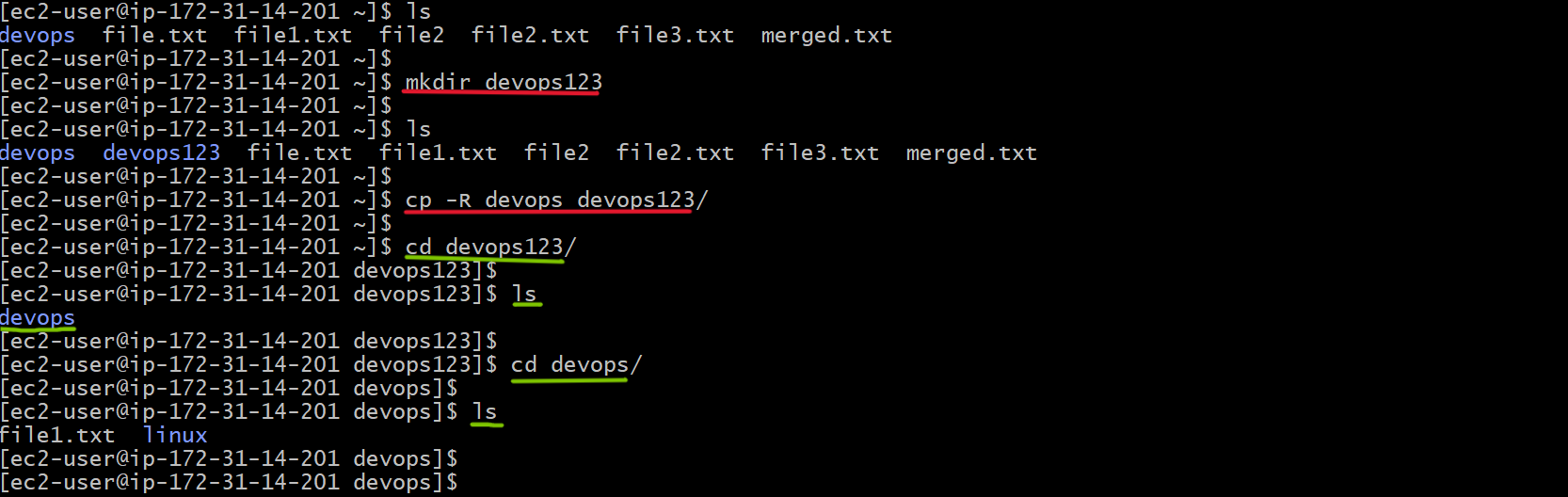
Navigated into
devops123and confirmed that thedevopsfolder was copied.Opened the copied
devopsfolder and verified that all files and folders (likefile1.txt,linux) inside it were successfully copied
Copying Multiple Files into a Directory
Navigated into
devops123/to check its contents usingcd devops123/andls.Saw that it contained only the copied
devopsdirectory.Went back to the parent directory using:
cd ..
cp *.txt devops123/
- This copied all
.txtfiles in the current directory intodevops123/.
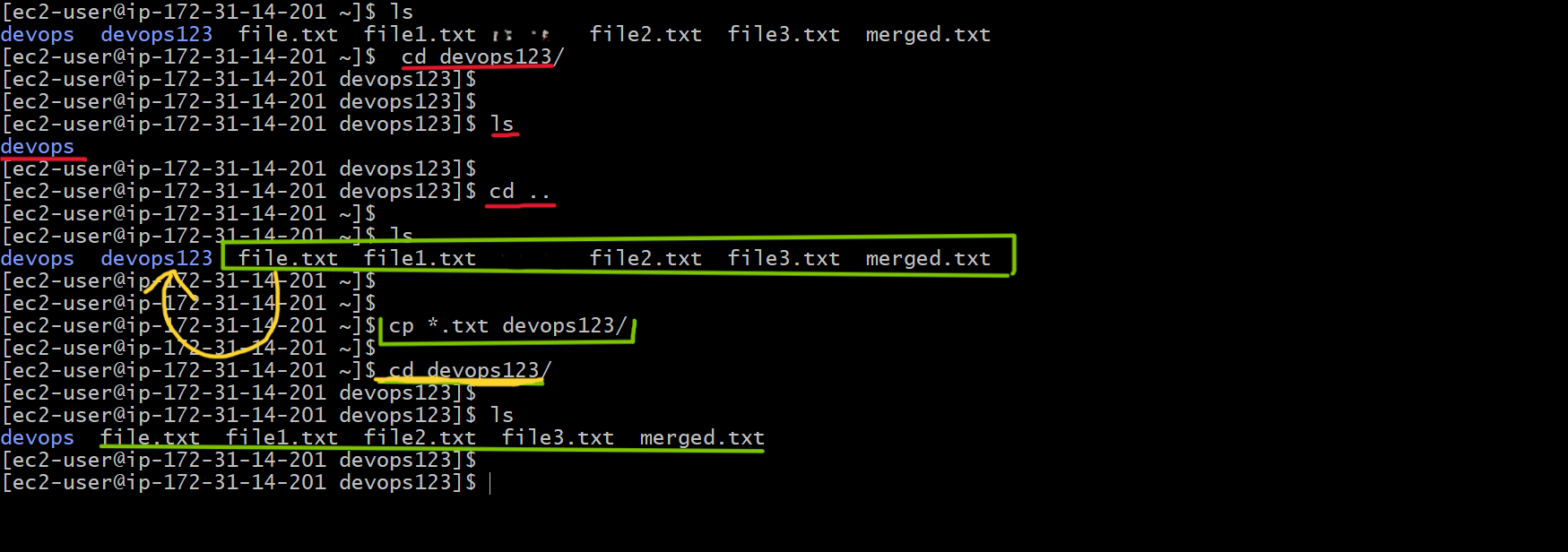
Entered devops123/ again to verify: This confirms that all .txt files (file.txt, file1.txt, etc.) were successfully copied into devops123/.
6. mv (Move and Rename Files)
The mv command in Linux is used to move and rename files and directories. It's similar to a "cut-paste" operation rather than "copy-paste."
Basic Usage
mv oldname newname → Renames a file or directory.
mv filename /destination/ → Moves a file to a different directory.
mv oldname newname→ Renames a file or directory.Here, we renamed the file merged.txt to updated.txt using the
mvcommand.
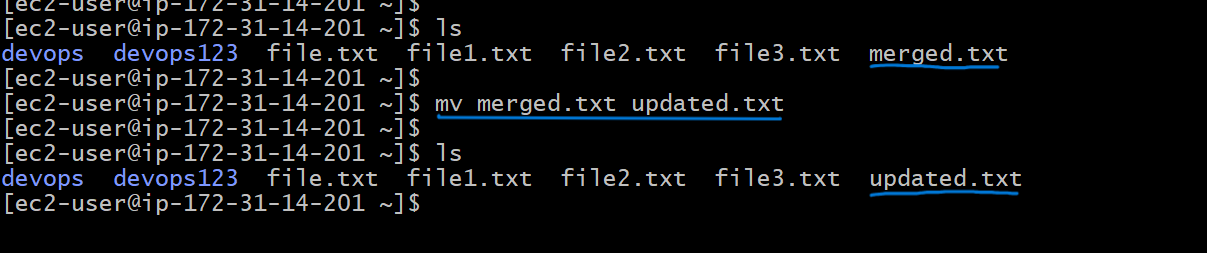
Moving a File into a Directory using mv
mv filename /destination/ → Moves a file to a different directory.
We have a file named
updated.txtin the current directory.We want to move this file into the
devops/directory.To check the contents of
devopsbefore moving, instead of usingcd devops, we used:
ls -lrth devops
This shows what's inside
devopswithout entering it.Then, we moved the file using:
mv updated.txt devops
- To verify that
updated.txtwas successfully moved intodevops, we again used:ls -lrth devops
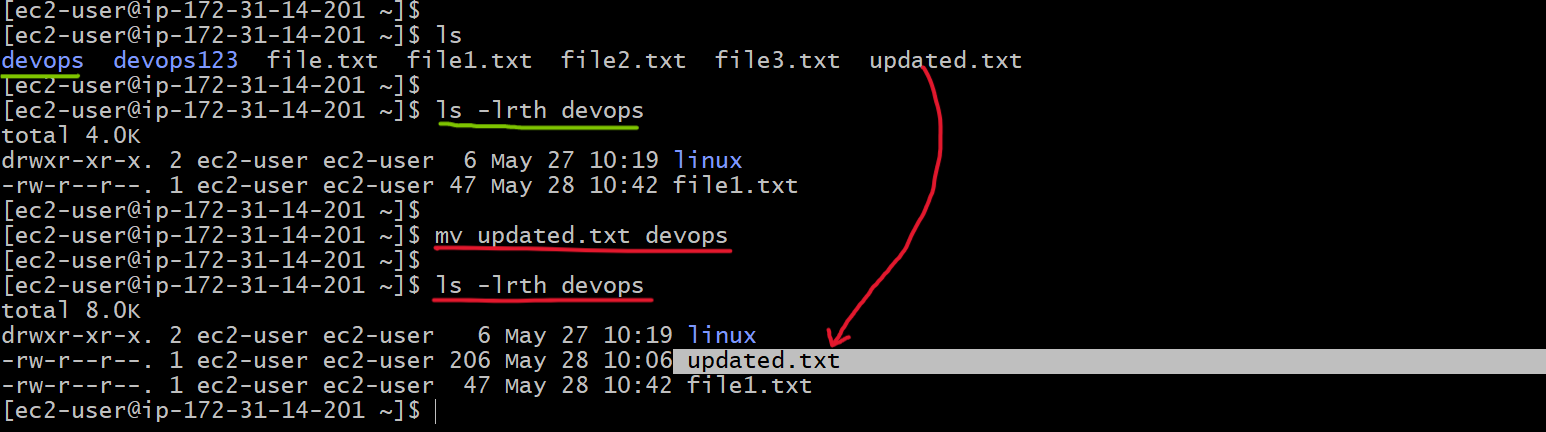
Now it shows updated.txt inside devops.
- This way, we can move multiple files to a directory.
mv file1 file2 /destination/
7. tail (View Last N Lines of a File)
The tail command in Linux is used to display the last few lines of a file. It's especially useful for monitoring logs and checking recent updates in files.
Basic Usage
tail filename→ Shows the last 10 lines of a file (default behavior).tail -n 20 filename→ Displays the last 20 lines of the file.
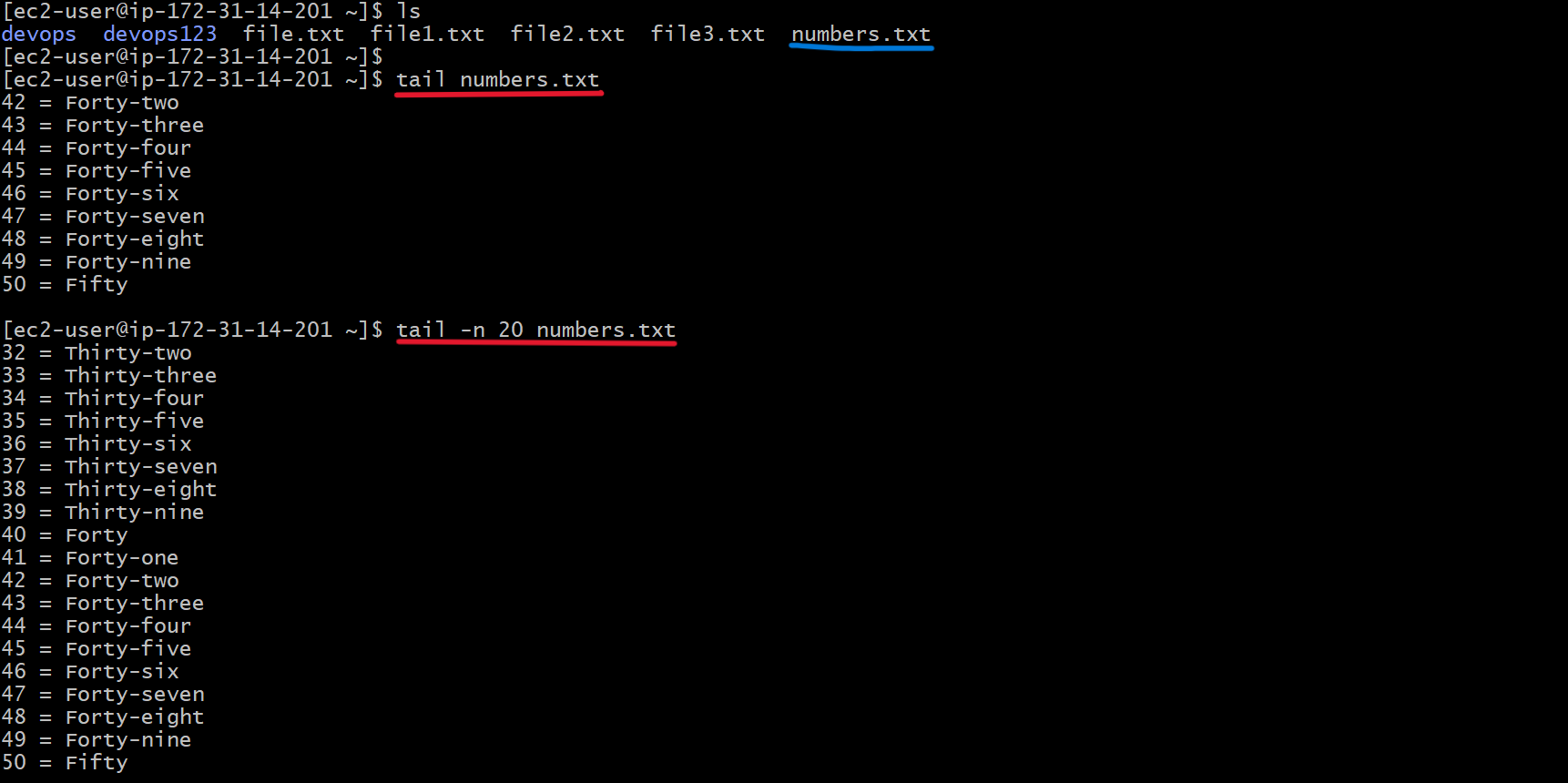
tail -f filename→ Continuously monitors the file for new updates (great for logs).
8. head (View First N Lines of a File)
The head command in Linux is used to display the first few lines of a file. It's great for quickly previewing file contents without opening the entire file.
Basic Usage
head filename→ Shows the first 10 lines of a file (default behavior).head -n 20 filename→ Displays the first 20 lines of the file.
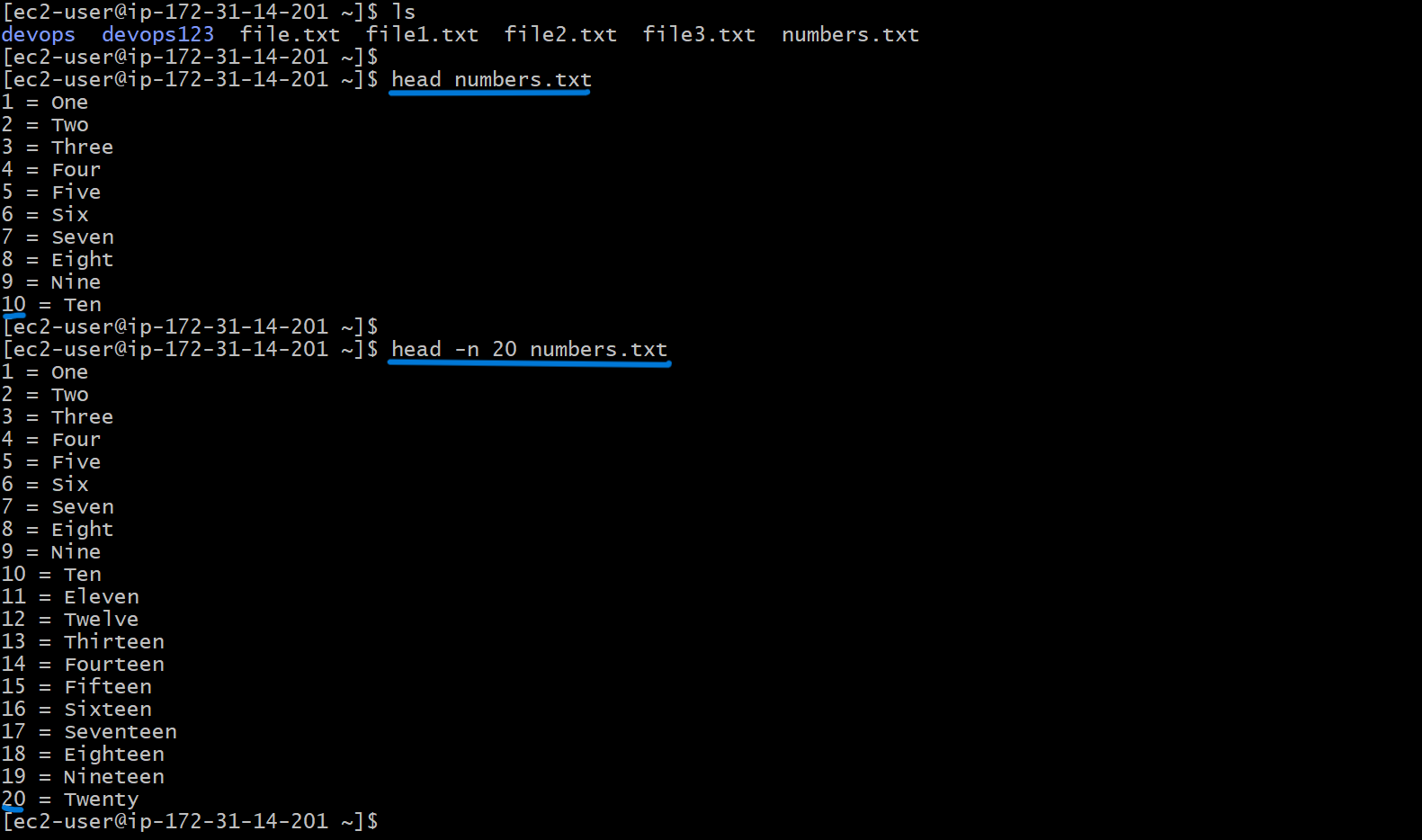
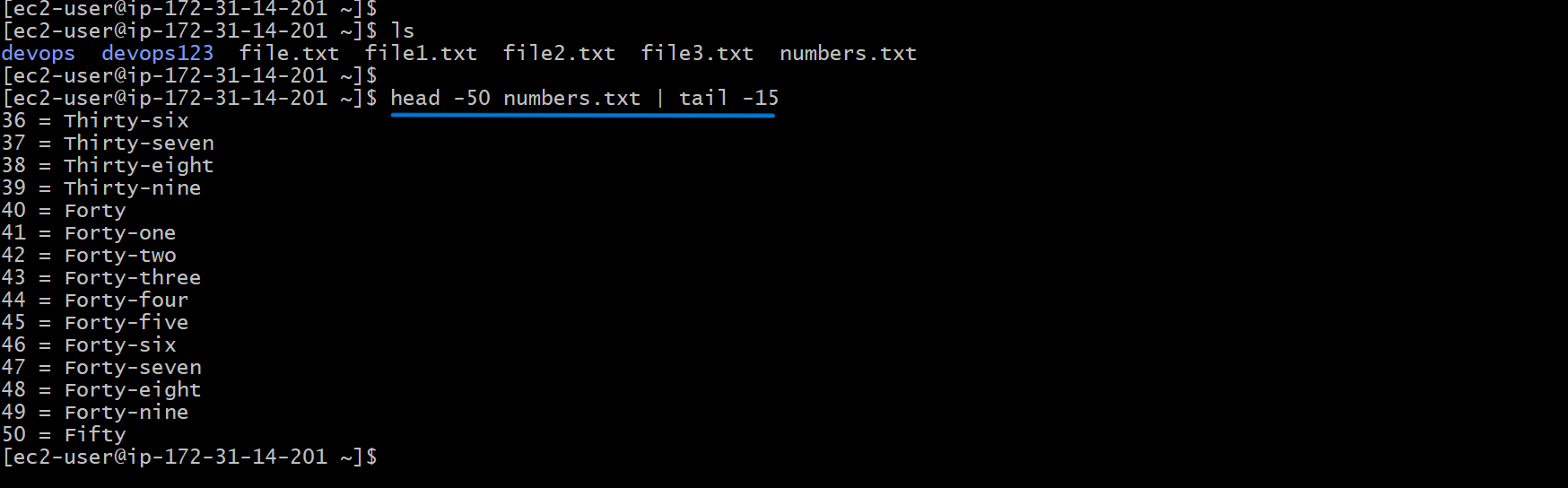
Scenario: Display a Specific Line Range (36-50) from a File
Step 1: Identify the Line Range
You want to display lines 36 to 50 from a file.
So the line range is from line 36 up to line 50.
Step 2: Calculate N and M
To extract these lines using the head and tail combination:
N = 50 → This is the last line you want.
M = 50 - 36 + 1 = 15 → This is the number of lines to extract (from line 36 to 50 inclusive).
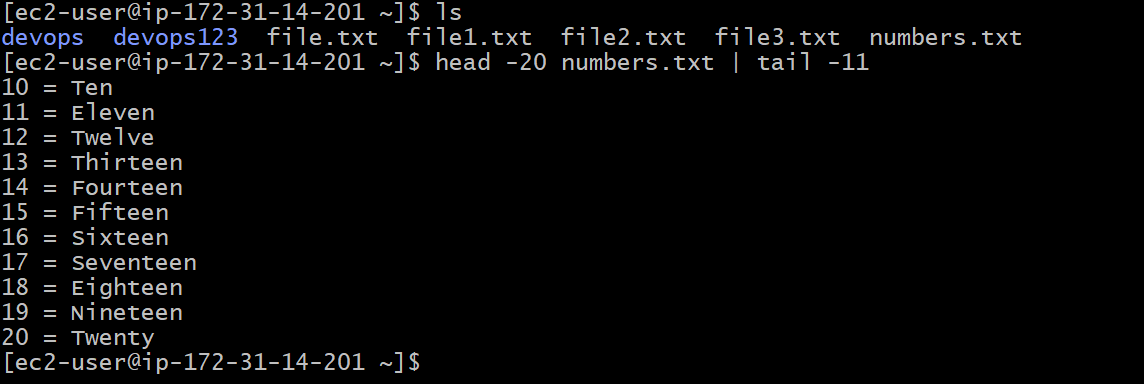
head -N file.txt | tail -M
head -50 file.txt | tail -15
Example for Lines 10 to 20:
head -20 file.txt | tail -11
Because 20 - 10 + 1 = 11 lines.
9. sort (Sort File Content)
Description:
- The
sortcommand in Linux is used to sort lines of text files in various ways, such as alphabetically, numerically, or by specific fields.
Usage:
sort file.txt  # Alphabetical sort
sort -r file.txt  # Reverse order sort
sort -u file.txt  # Remove duplicate lines
sort -k 2 data.txt  # Sort based on second column
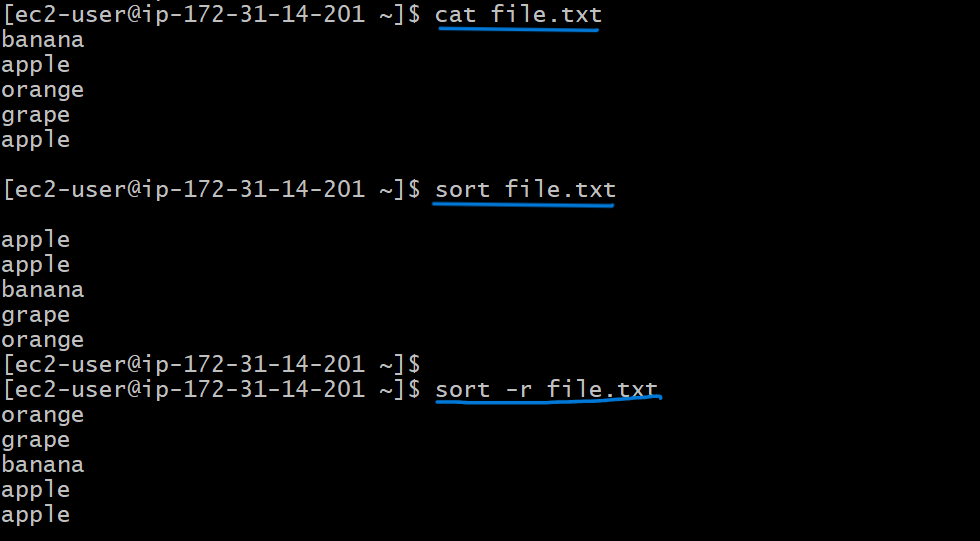
sort file.txt # Alphabetical sort
The
sortcommand arranges lines alphabetically from A to Z. Sinceappleappears twice, both lines are shown.The
-roption reverses the sort order, showing lines from Z to A. Duplicate lines (apple) are both displayed.
sort -u file.txt # Remove duplicate lines
The
-uflag tellssortto remove duplicate lines after sorting.Since
appleappeared twice, it is only shown once in the output.

sort -k 2 data.txt # Sort based on second column
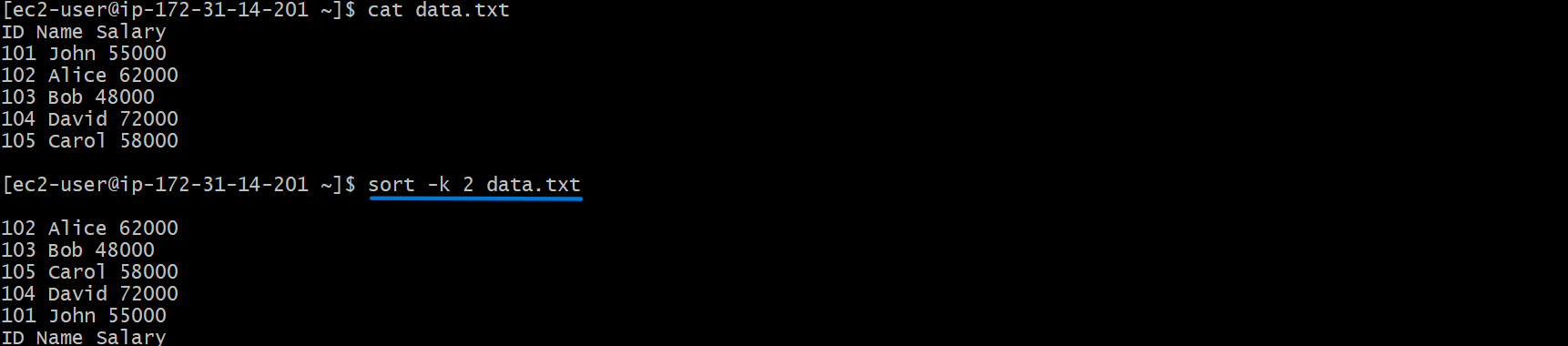
-k 2tellssortto use the second column (theName) as the sorting key.Sorting alphabetically by Name means the lines are rearranged based on the alphabetical order of the names.
Names in alphabetical order: Alice, Bob, Carol, David, John


